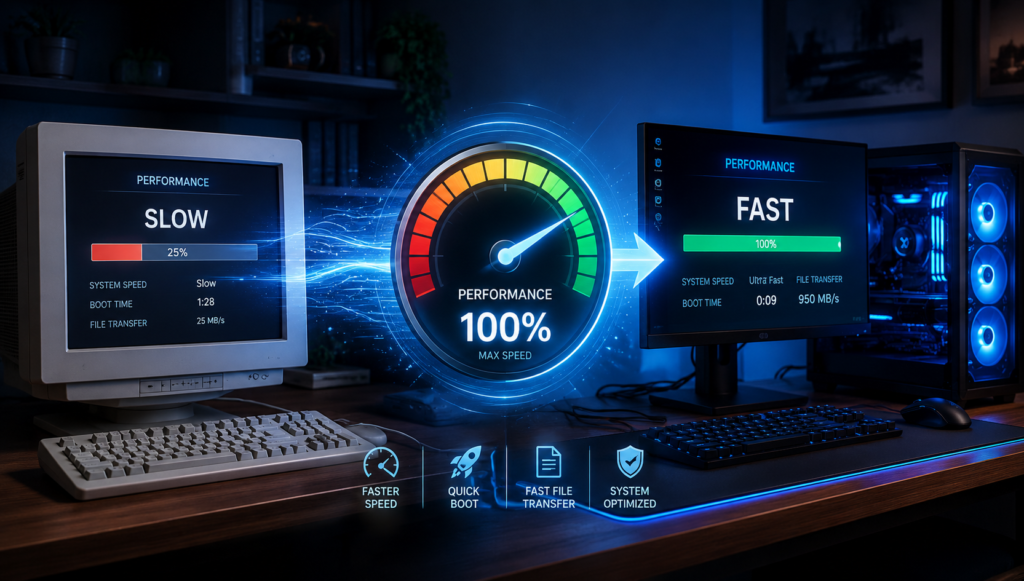
How to Speed Up a Slow Computer: 12 Easy Fixes That Actually Work
Is your computer taking forever to start, open programs, or browse the internet? A slow PC can be frustrating, but the good news is that you don’t always need to buy a new computer. In many cases, a few simple optimizations can dramatically improve performance. Whether you’re using a Windows laptop, desktop, or an older computer, these practical tips can help make your system feel faster and more responsive.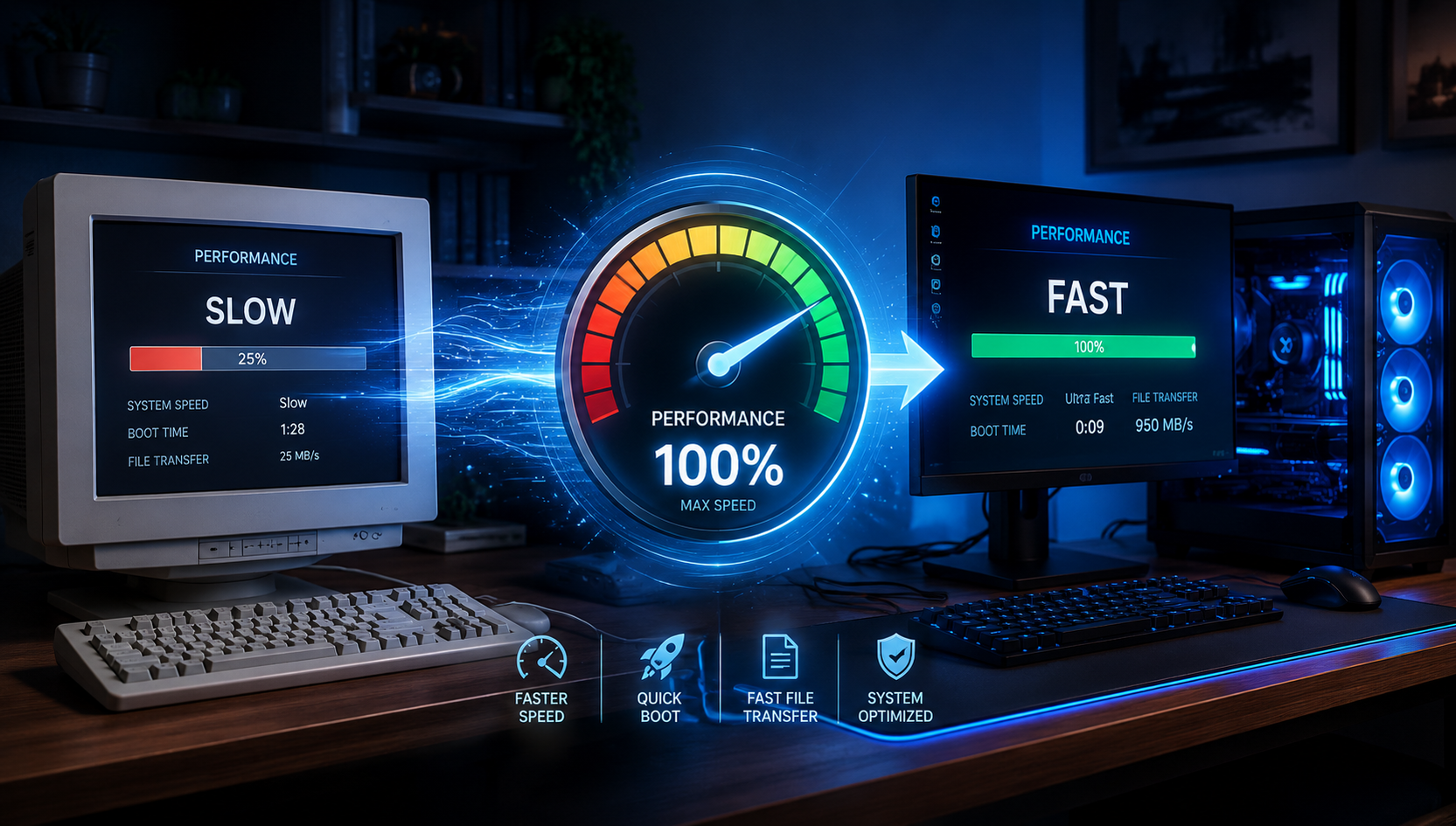
⚡ Quick Performance Boost
✔ Disable unnecessary startup apps. ✔ Upgrade from HDD to SSD. ✔ Remove unused software. ✔ Free up storage space. ✔ Scan for malware and viruses. ✔ Upgrade RAM if needed.🚀 1. Restart Your Computer
Many users keep their computers running for days or weeks. A simple restart clears temporary files, background processes, and memory usage that may be slowing down your system.Quick Tip:
Restart your PC at least once every few days for optimal performance.
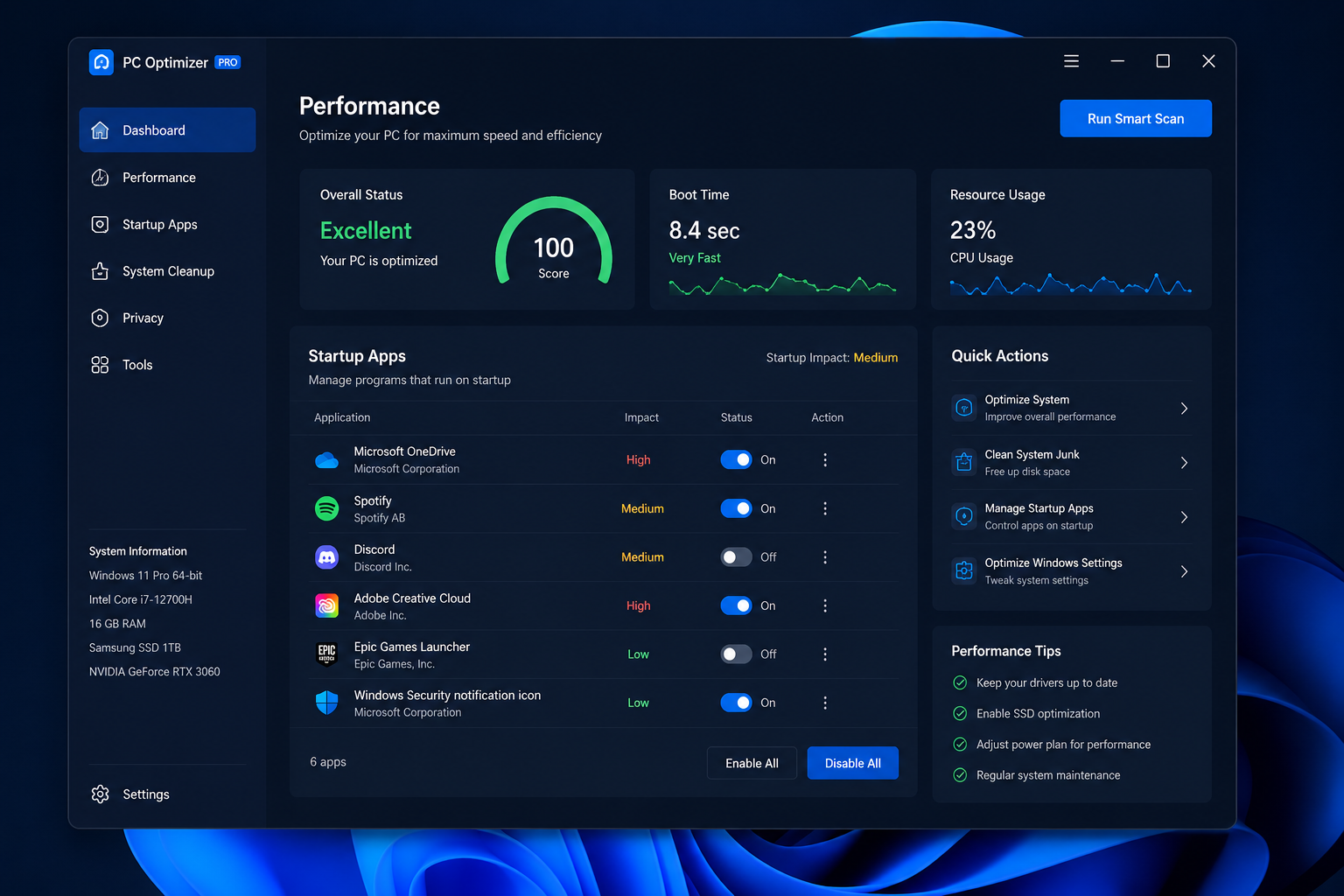
📦 2. Disable Startup Programs
Many applications automatically launch when Windows starts, increasing boot times and consuming system resources.How to Check:
Ctrl + Shift + Esc → Task Manager → Startup Apps
Disable programs you don’t need at startup.
🗑️ 3. Remove Unused Programs
Old applications can consume storage space and system resources even when you’re not actively using them. Uninstall software you no longer need through:Settings → Apps → Installed Apps
💾 4. Free Up Storage Space
Computers with nearly full storage drives often become noticeably slower.- Delete unnecessary downloads
- Empty the Recycle Bin
- Remove duplicate files
- Move large files to external storage
💡 Recommended:
Keep at least 15-20% of your storage drive free for smooth performance.
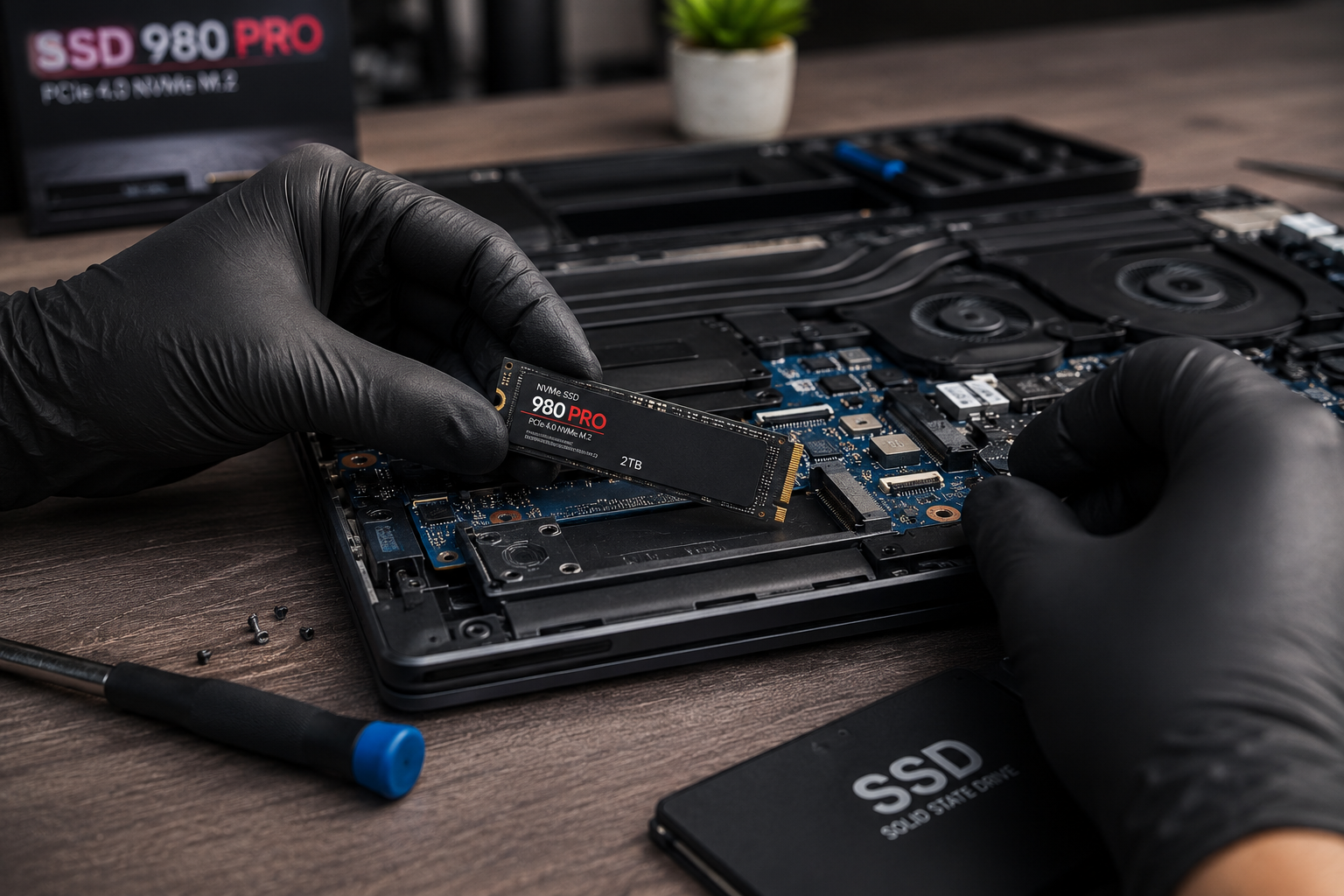
⚙️ 5. Upgrade from HDD to SSD
If your computer still uses a traditional HDD, upgrading to an SSD is often the single biggest performance improvement you can make. An SSD can significantly reduce:- Boot times
- Application loading times
- File transfer delays
- General system lag
🧠 6. Add More RAM
If your computer slows down when multiple applications are open, insufficient RAM may be the cause.| Usage | Recommended RAM |
|---|---|
| Basic Browsing | 8GB |
| Students & Office Work | 16GB |
| Gaming | 16GB+ |
| Video Editing | 32GB+ |
🛡️ 7. Scan for Malware
Viruses, malware, and unwanted software can heavily impact performance. Run a full system scan using Windows Security or a trusted antivirus solution.⚠ Warning
Avoid downloading software from unknown websites, as it may contain malware that slows down your computer.
🔄 8. Update Windows and Drivers
Software updates often include performance improvements, security fixes, and bug corrections.- Update Windows regularly
- Update graphics drivers
- Update chipset drivers
- Update SSD firmware if available
🌐 9. Reduce Browser Extensions
Too many browser extensions can consume memory and slow down web browsing. Remove extensions you rarely use and keep only essential tools installed.🧹 10. Clean Temporary Files
Temporary files accumulate over time and can waste storage space.Press Windows + R
Type: temp
Delete unnecessary temporary files.
❄️ 11. Check for Overheating
Excessive heat can force your CPU and GPU to reduce performance to protect hardware components.- Clean dust from fans
- Ensure proper airflow
- Use cooling pads for laptops
- Avoid blocking ventilation areas
🔧 12. Reset or Reinstall Windows
If your computer remains slow despite trying everything above, a clean Windows installation can often restore performance.📌 Before Reinstalling
Always back up important files to an external drive or cloud storage.